
A prompt goes in. A file comes out. Everything in between is visible.
QGI Studio is built around three nouns. A project is a workspace with real files. A run is one turn of the agent inside that project, with an engine, a mode and a narrowed toolbox. An artifact is what the run leaves behind: a deck, a page, a sheet, a document, a video, a script, an automation.
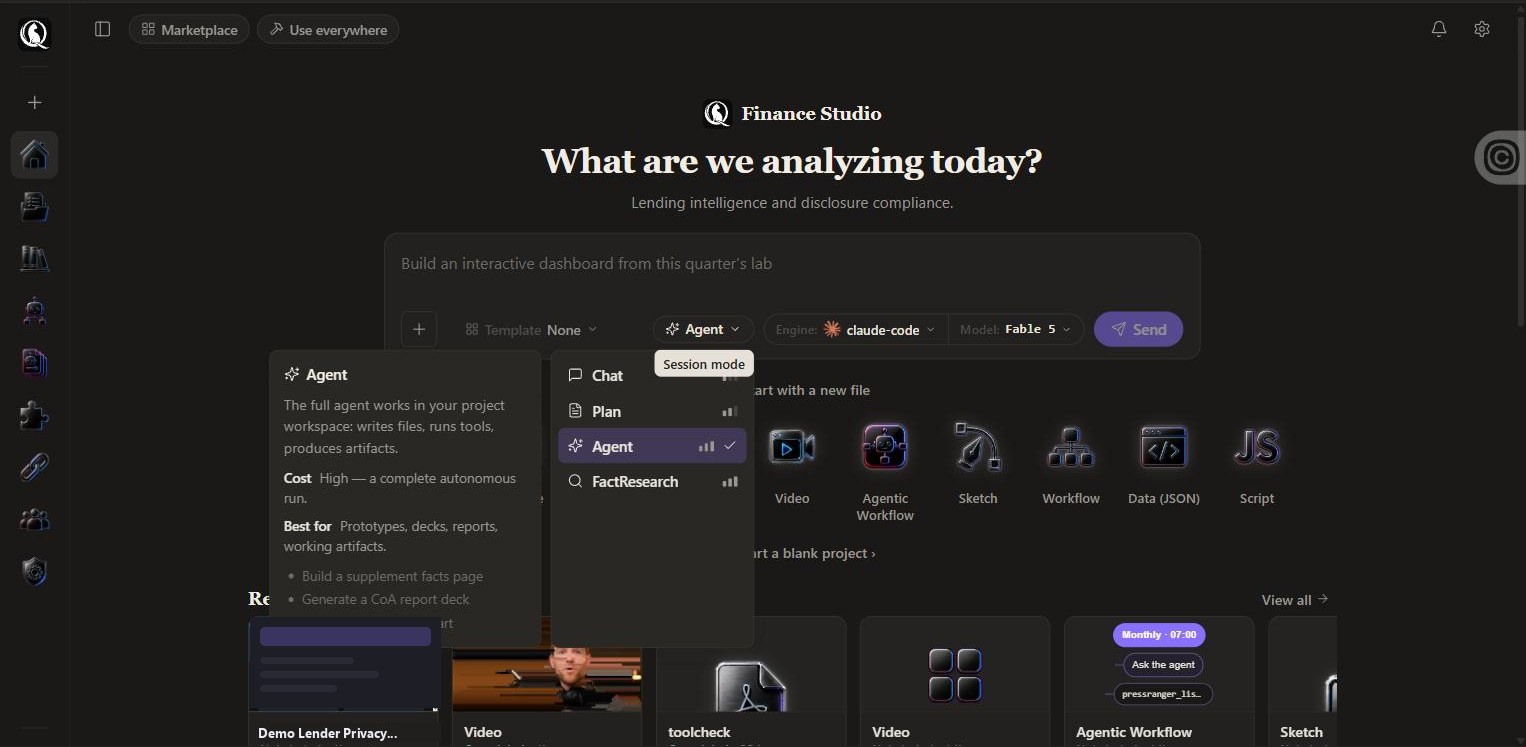
One bar, four decisions.
- Template. None, or a starting point with the file type, the tools and the schedule already set.
- Mode. Chat a quick answer; Plan scope before building; Agent a complete run that writes files and runs tools; FactResearch sourced answers with citations.
- Engine.
QGI One,Quark,QGI-Symbolicon your plan, orclaude-code,Codex,cursor,kimi,opencodeon your keys. - File type. Or skip the bar and pick one from the rail: Slide deck, Document, Web page, Sheet, Image, Video, Automation, Sketch, Workflow, Data (JSON), Script.
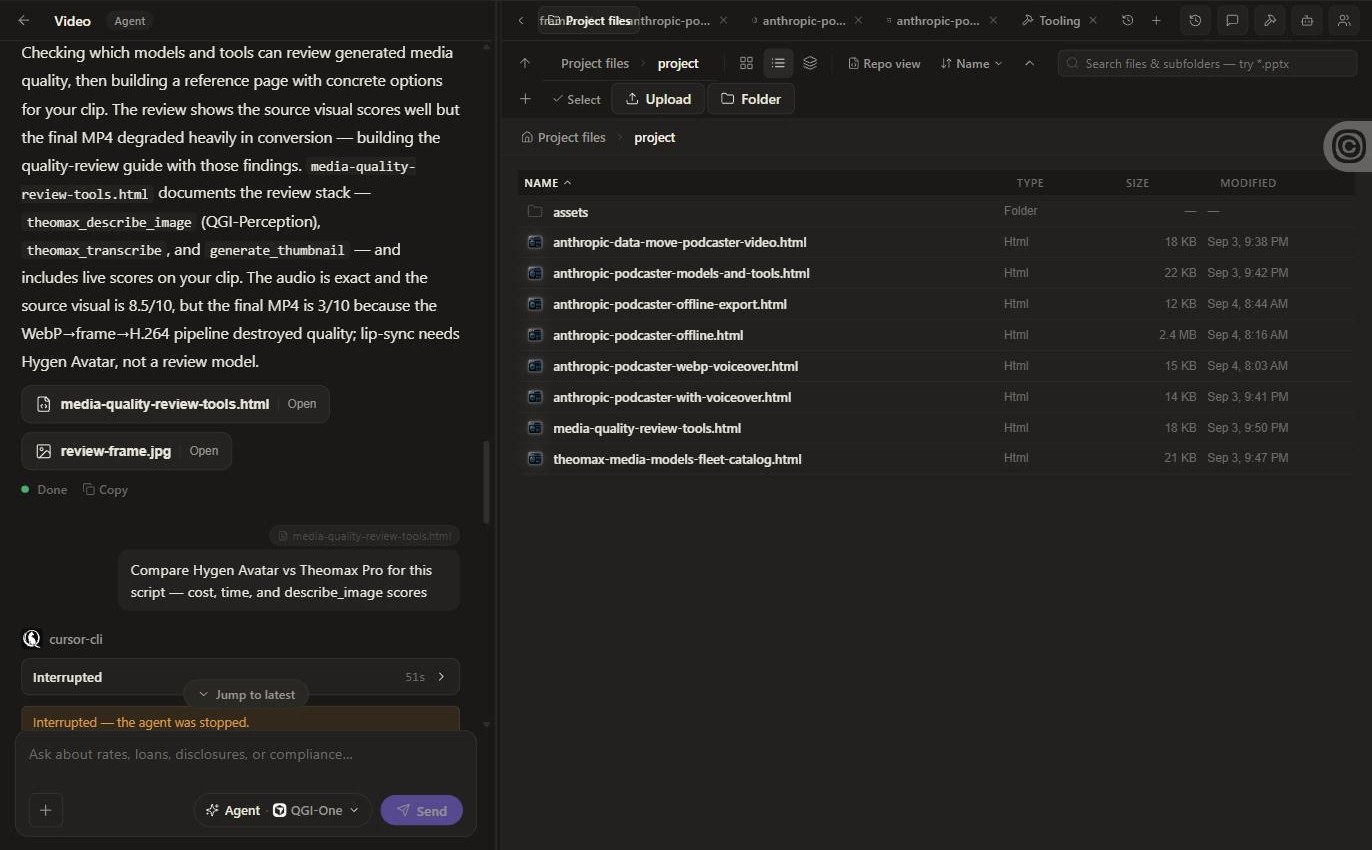
Watch it think.
The left panel is the agent’s working log, not a chat. Each turn shows the engine that ran it, elapsed time, and a collapsible trail of tool calls: which ran, whether each succeeded, and what the agent decided next. When it finishes, the files it produced are listed with Open buttons, and the run shows what it cost.
It is honest about failure. If a tool cannot decode a format, you read that in the log and see the workaround it chose. If a run stalls, you see where.
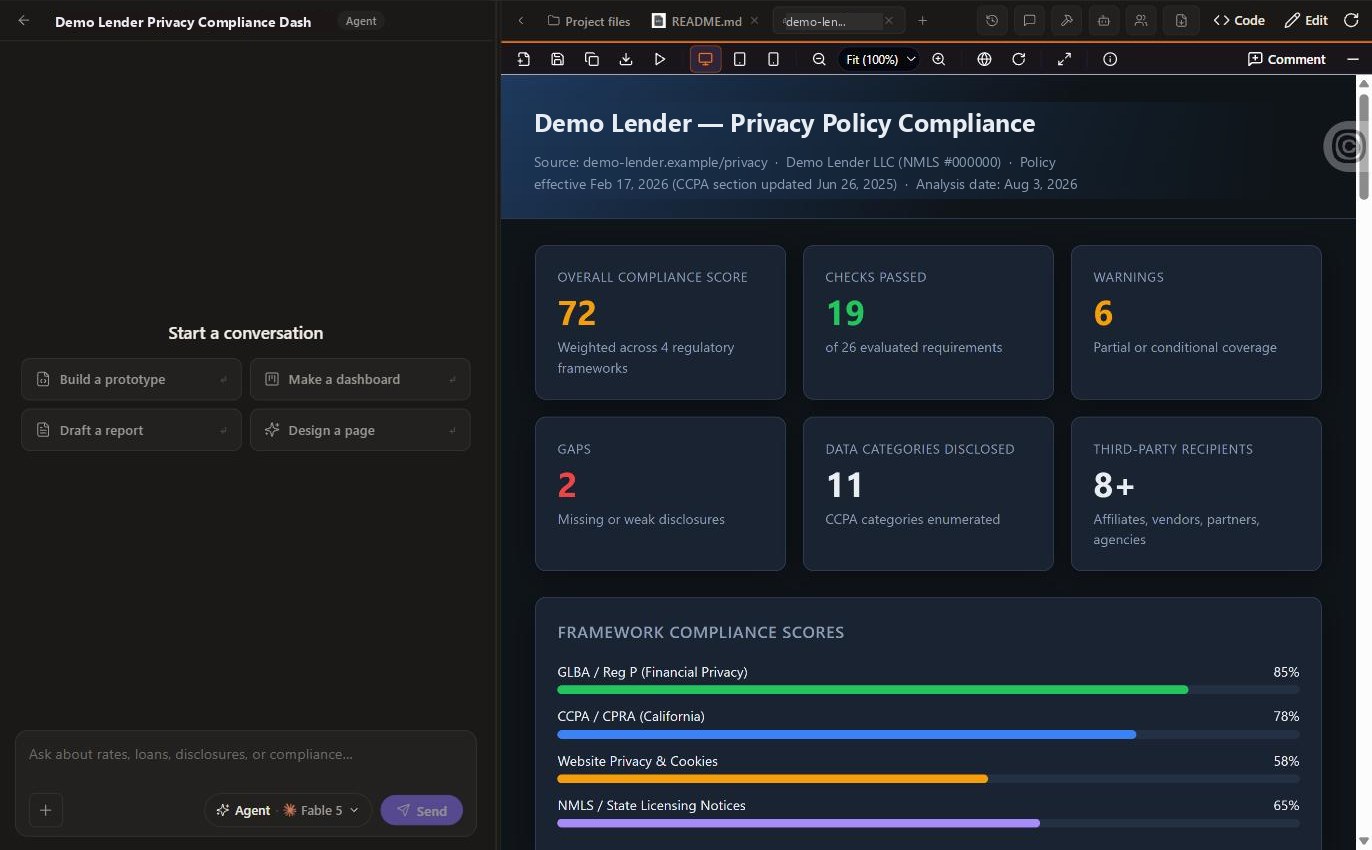
Preview, code, edit. And check it on a phone.
The right panel is a tabbed workspace. Open any artifact in Preview, flip to Code to read the source, or Edit to change it by hand without spending another run. The toolbar gives you desktop, tablet and mobile widths, zoom, open-in-browser, full screen and export.
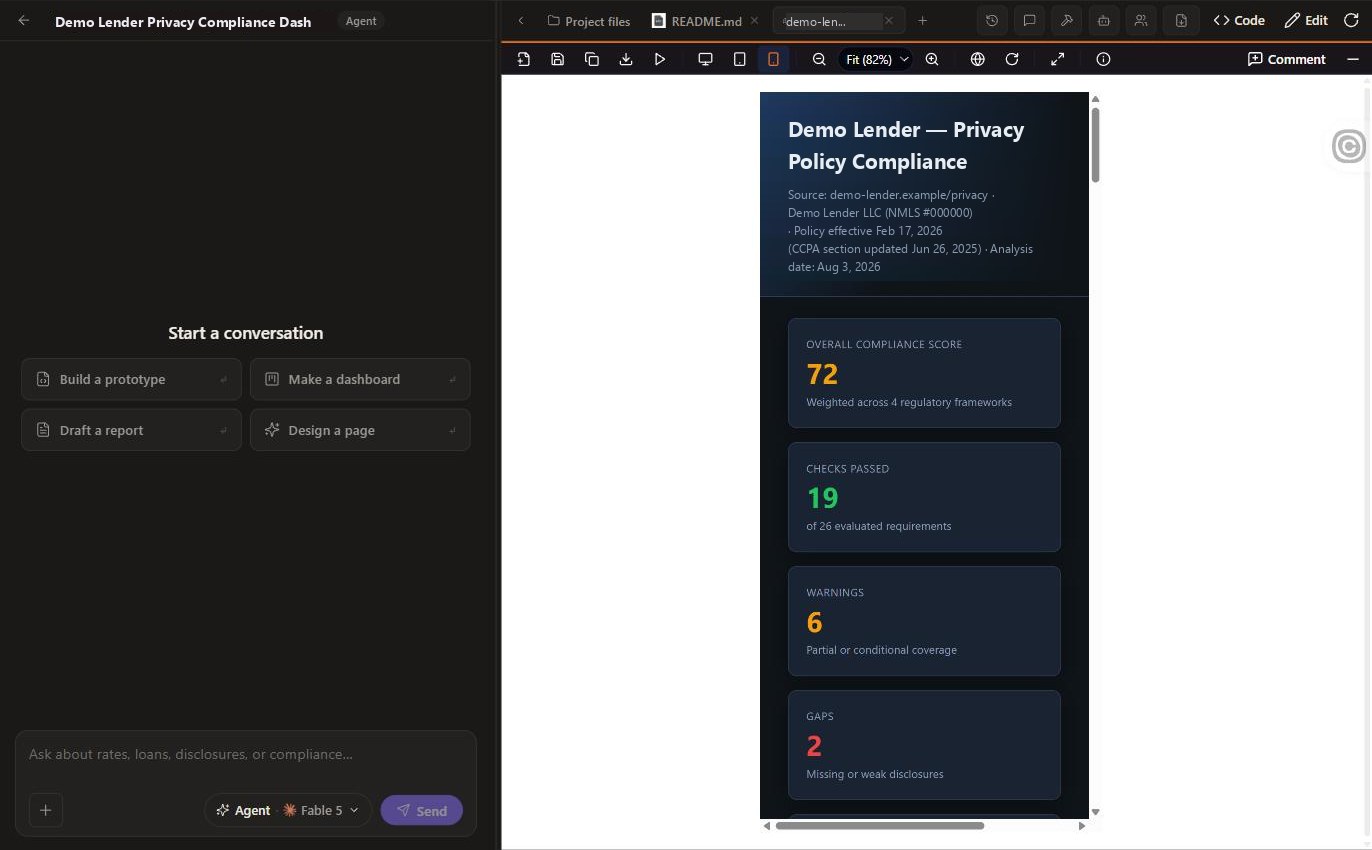
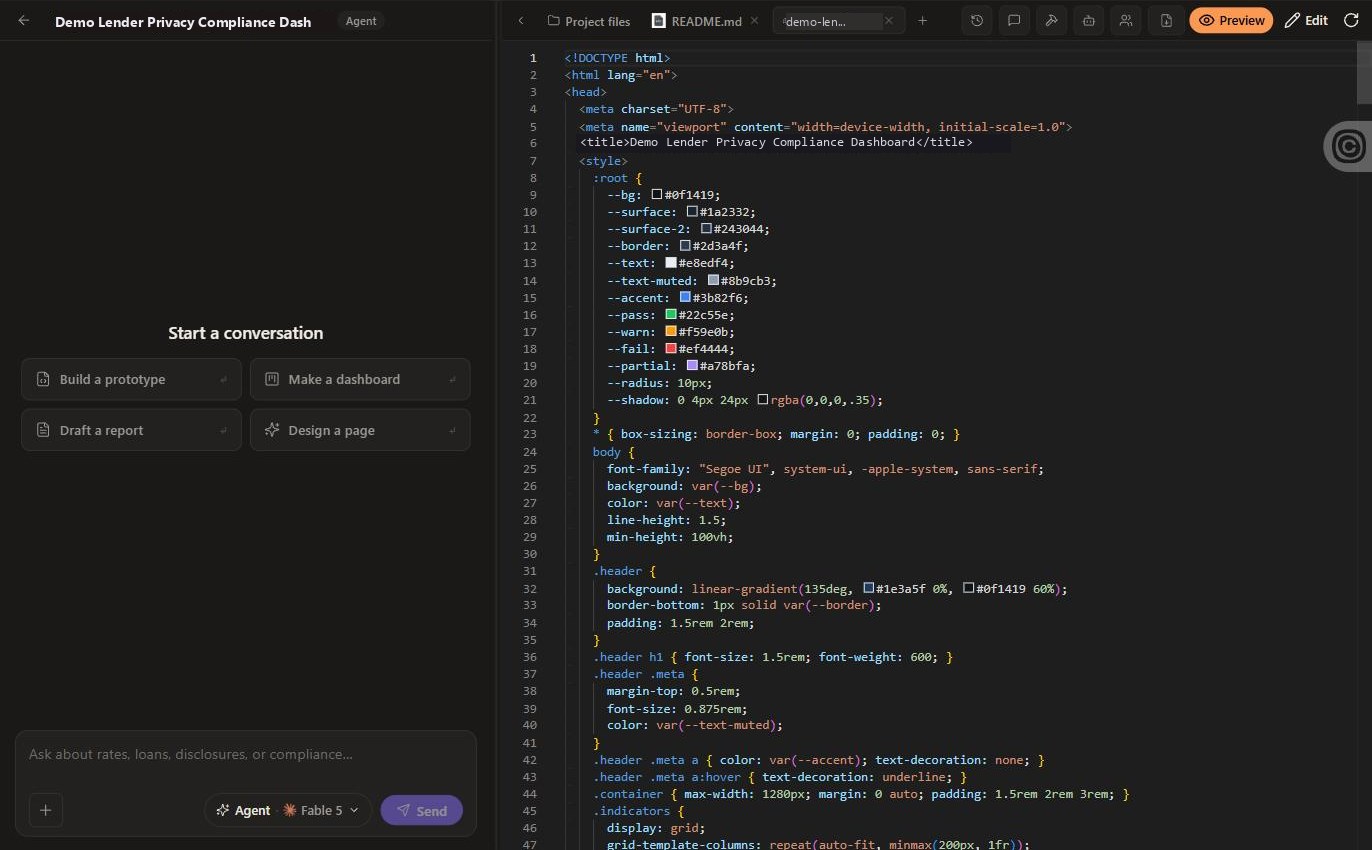
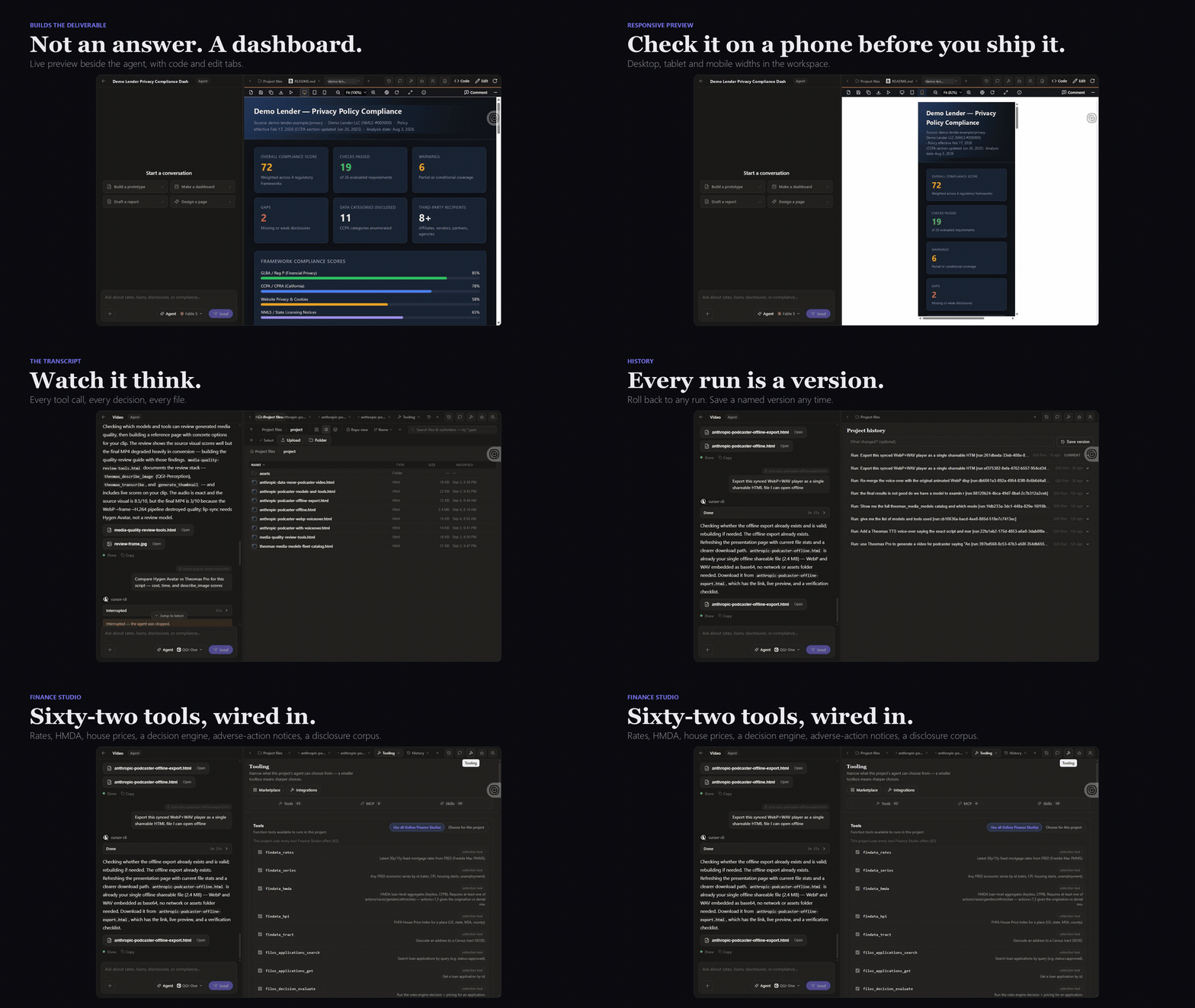
Dashboard, mobile preview, transcript, versions, tooling.
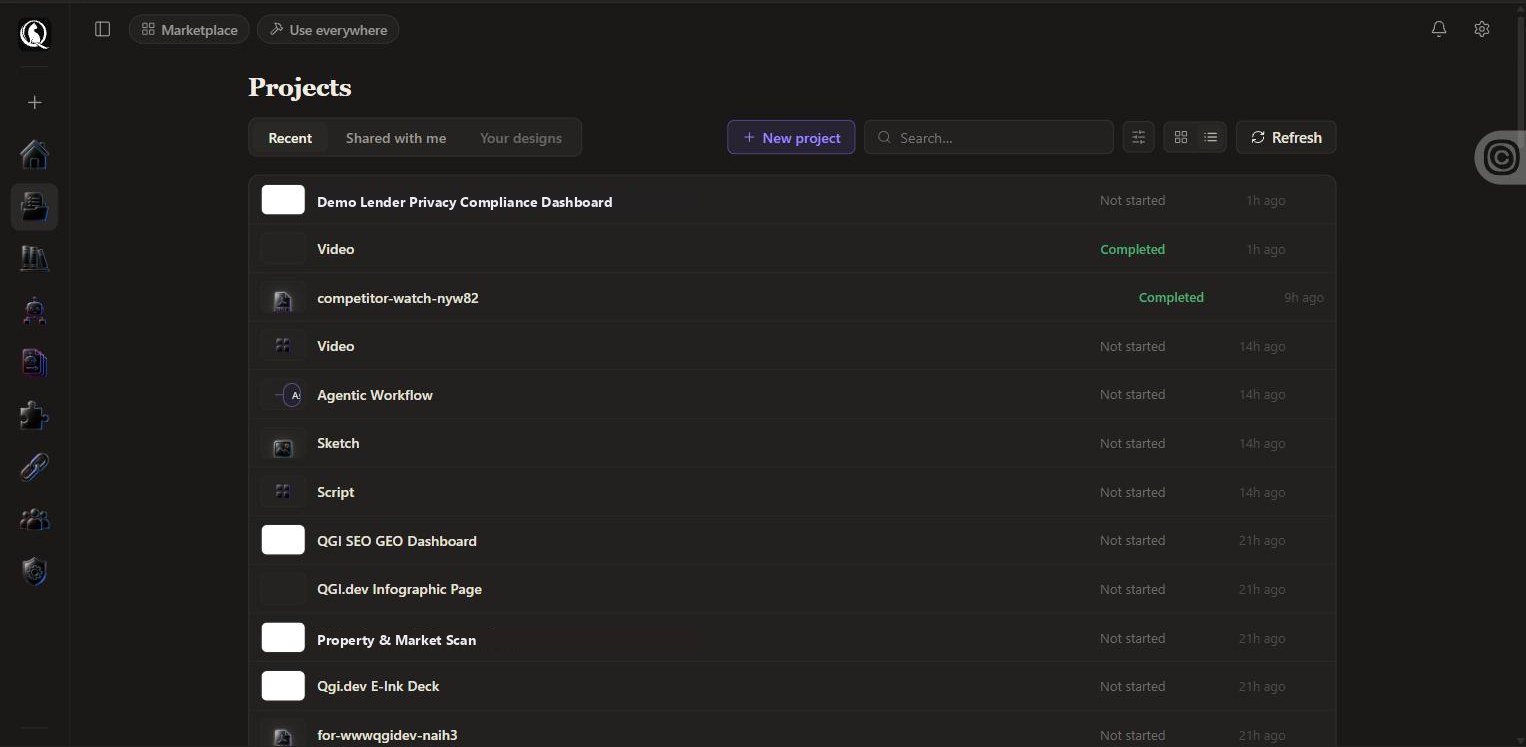
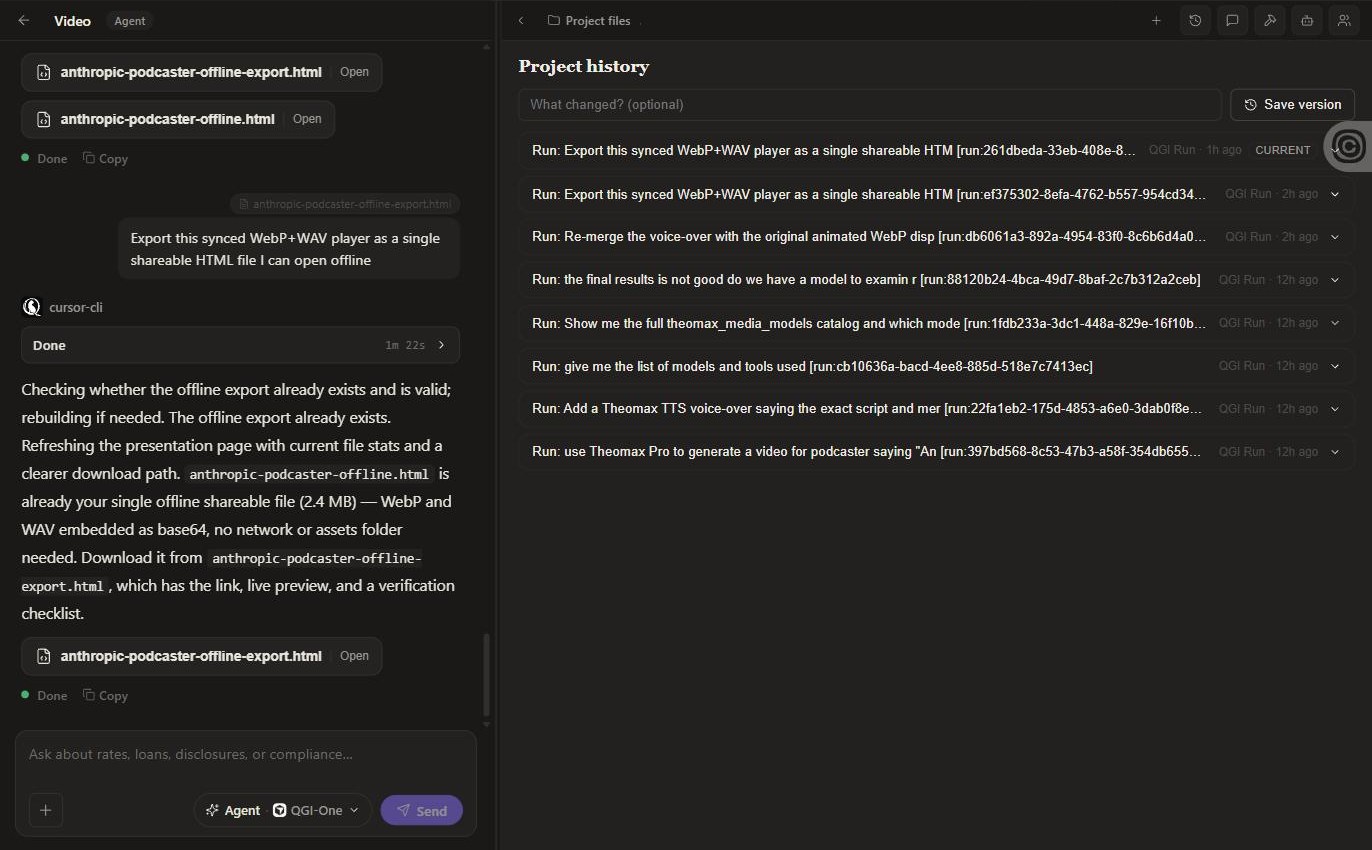
Every run is a version.
Project history records each run with its prompt. Save a named version whenever you want a checkpoint, and roll back when a run went somewhere you did not like. Comments sit beside the artifact. Share hands the project to a teammate; Save as forks it. Export any artifact as a file you own.
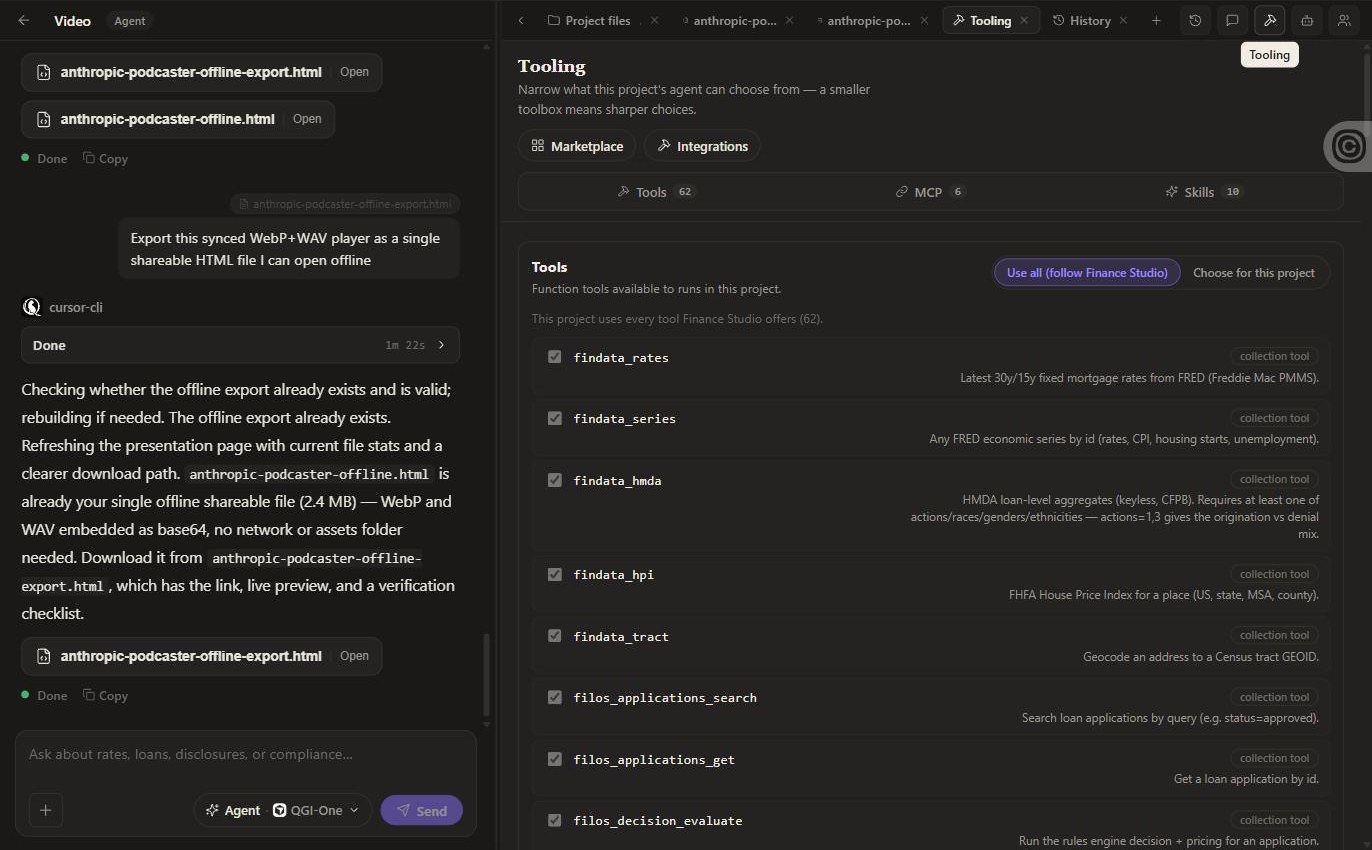
A smaller toolbox means sharper choices.
Each project can follow the studio’s full toolbox or choose its own. Toggle tools, MCP servers and skills per project so the agent reaches for the right one instead of guessing. Add a skill for a single project without touching the rest.
Turn a run into a schedule.
Anything you have done once can become an automation: a prompt on a cadence, or a governed flow with an approval step. It runs in the cloud with your laptop closed and logs every run.
Projects, runs, artifacts. That is the whole loop.
No credit card. First file in under five minutes. Cancel anytime.